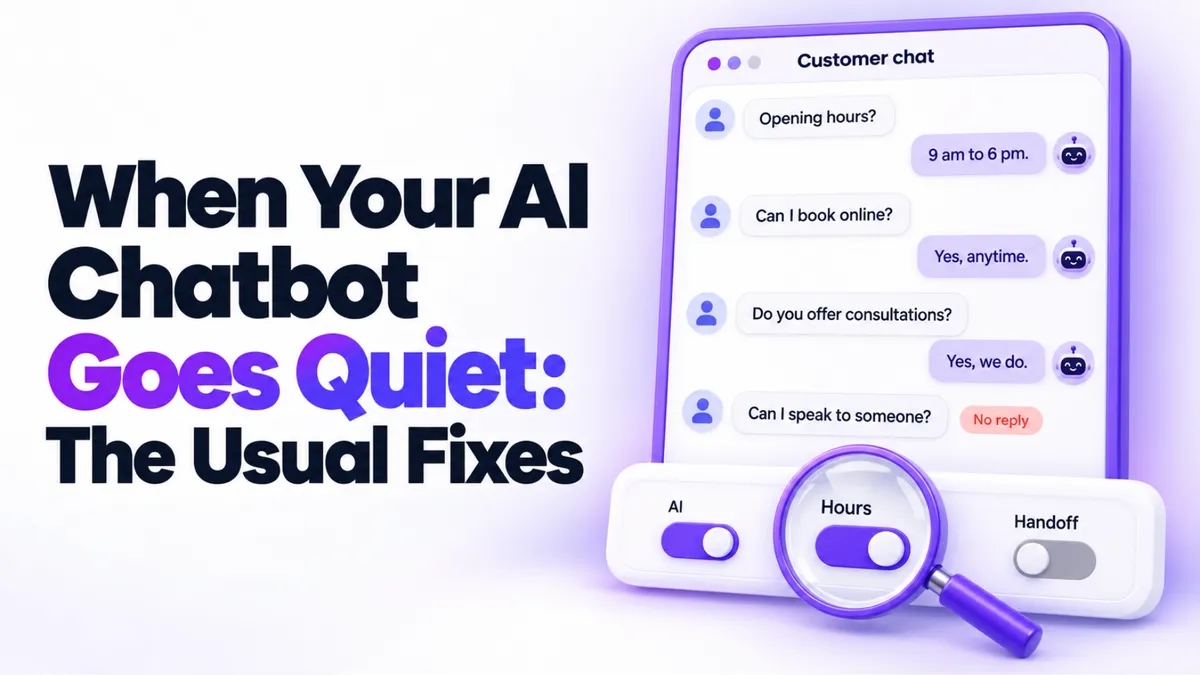
Why Is My AI Chatbot Not Responding to Some Customers?
A customer wrote to our support inbox recently with a problem we hear often: "The chatbot is not responding at all to some customers. They can't get answers from the bot, and it's affecting their experience with our business."
Here's the short version of what we told them. An AI chatbot not responding to some customers (while happily chatting with others) is almost never a broken bot. It's nearly always a setting doing exactly what it was told to do, just not what you expected. There are five usual culprits, and you can check all of them yourself in about ten minutes.
Quick Answer: Why Is Your AI Chatbot Not Responding?
When an AI chatbot responds to some customers but not others, the cause is usually one of five settings: the bot is switched off for that specific channel, the customer hit a message limit, the contact is marked do not disturb, a workflow condition is filtering them out, or a human takeover window is still open from an earlier conversation. Check those five in order and you'll find the cause in most cases without raising a support ticket.
Is the Bot Switched On for That Channel?
This is the first thing to check because it's the most common. Your chatbot isn't one on-off switch. It's usually enabled per channel: website chat, SMS, Facebook, Instagram, WhatsApp, each with its own toggle.
So the bot can be answering website visitors flawlessly while every Instagram message sits unread, and both things are "working as configured." If the silent customers all came in through the same channel, you've probably already found your answer. Open your bot's channel settings and check that every channel your customers actually use is switched on.
Has the Customer Hit a Message Limit?
Most AI chatbots let you cap how many messages the bot will send one contact, which protects you from endless loops and runaway usage. Useful, but it has a sharp edge: once a customer hits the cap, the bot goes silent for them specifically, while responding to everyone else. From the outside, that looks exactly like a random failure.
The detail that catches people out is the reset. Limits don't necessarily reset daily. Depending on how yours is configured, the counter may reset a few hours after the customer's last message, or it may keep counting across days or weeks until it's reset. A returning customer who used up most of their messages last month might come back to a bot with almost nothing left to say.
If your silent customers are your most talkative ones, or repeat visitors, check two things: what the limit is, and when it resets. Make sure both match how your customers actually behave. A business whose customers check in every few weeks needs a very different reset window than one handling one-time inquiries.
Is the Contact Marked Do Not Disturb, or Filtered by a Workflow?
Two quieter culprits live at the contact level.
First, do not disturb. Contacts can be marked DND for all channels or just one, sometimes automatically (after an unsubscribe, for example) and sometimes by a team member who clicked it months ago. A DND contact gets silence from the bot, by design. Open one affected contact's record and look at their DND status before you go hunting anywhere else.
Second, workflow conditions. If your bot is triggered by a workflow, every filter on that workflow is a reason some people never reach the bot. Conditions like "only new leads," "only business hours," or "only contacts with this tag" all quietly exclude everyone else. Open the workflow, read the conditions, and ask: would the silent customer pass every one of these? Checking the workflow's run history for that contact usually settles it.
Is a Human Takeover Window Still Open?
Most well-built chatbots step aside when a human joins the conversation, and stay quiet for a set window afterward so your team member and the bot don't talk over each other. It's good manners, until everyone forgets the window exists.
The classic version: a team member replies manually to a customer on Tuesday, the takeover window opens, and when the customer writes back on Wednesday the bot stays politely silent because it still considers the conversation human-owned. Nobody on the team sees the message, and the customer concludes your chatbot is broken.
If the silent conversations all had a human reply somewhere in the history, this is your culprit. Check how long your takeover window lasts and decide who actually owns a conversation after a human steps in, because the bot won't take it back on its own until the window closes.
How Do You Test It Yourself Before Raising a Ticket?
Before you email support, run this ten minute test. Message your own business as a brand new contact, from a phone or account your system has never seen, on the channel where customers reported silence. If the bot answers, the bot works, and the problem is one of the contact-level settings above. Then open one affected customer's conversation and check, in order: the channel toggle, their message count against the limit, their DND status, the workflow conditions, and whether a human reply opened a takeover window.
If the bot ignores even your brand new test contact on an enabled channel, now you have a real issue, and a much better support ticket: you can say exactly what you tested and what you ruled out. That usually turns a week of back and forth into one reply.
This kind of troubleshooting is also a good argument for keeping your chatbot, inbox, and workflows in one platform. When the bot, the conversation history, and the automation all live in one place, you can see why a message went unanswered instead of guessing between three tools. That's how our AI communication tools are built, and it's half the reason diagnosing these issues takes minutes instead of days. If you're newer to automating customer conversations, our guide on how to automate your small business shows where a chatbot fits in the bigger picture.
One last reason to care about all this: a silent bot isn't neutral. Every unanswered message is a customer you paid to attract, walking off. We did the math on that in what missed calls really cost your business, and missed chats follow the same brutal arithmetic.
Key Takeaways
- A chatbot that answers some customers but not others is almost always a settings issue, not a broken bot.
- Check the channel toggles first; a bot can be on for website chat and off for Instagram at the same time.
- Review your message limit and its reset window, because limits that never reset silently cut off your repeat customers.
- Look at the contact's DND status and your workflow conditions before assuming anything is broken.
- Test with a brand new contact on the affected channel before raising a ticket, and include what you ruled out.
FAQs
Why does my chatbot answer some people but not others?
Because most chatbot settings apply per contact or per channel, not globally. Channel toggles, message limits, do not disturb flags, workflow filters, and human takeover windows all silence the bot for specific people while it keeps chatting with everyone else.
Does a chatbot message limit reset every day?
Not necessarily. Some setups reset a few hours after the customer's last message, others keep a running count until someone changes it. Check your own configuration rather than assuming a daily reset, especially if repeat customers are the ones going unanswered.
Why did my bot stop replying in the middle of a conversation?
Usually either the customer hit the message limit mid-chat, or a human team member replied at some point and the bot stepped aside for its takeover window. Both look identical from the customer's side.
How do I test my AI chatbot properly?
Message your business as a brand new contact on the affected channel. A fresh contact bypasses contact-level causes like DND and used-up limits, so it cleanly tests whether the bot itself works.
Should the bot handle every conversation?
No. The best setups let the bot handle the routine questions and hand anything sensitive or complex to a human fast. The goal is nobody waiting in silence, not zero human involvement.
Want More Like This?
If you'd rather have your chatbot, inbox, and follow-up set up properly from the start, we'll do it with you. Start a free 14 day trial of PulseGrowth and our team helps you get it set up, from channels and workflows to the settings this post just walked through. Start free, and we'll help you get it set up.
The PulseGrowth Team


