Why Did My Automation Stop Working After an Edit?
Your weekly reminder email has an automation behind it. The automation shows as active. The emails look fine. And nothing is sending. If this started right after someone edited the workflow, you're not imagining the connection. An automation stopped working after an edit is one of the most common support requests we get, and the cause is almost always the same quiet mechanic: enrollment.
Quick Answer: Why Did My Automation Stop Working?
When you edit the trigger on a live workflow, you change who qualifies to be enrolled in it. Contacts who were already inside can fall out, and they do not come back on their own, even after you fix the trigger. The automation isn't broken; it's running for nobody. The fix is to re-enroll the dropped contacts in bulk, then set the trigger to add people automatically by tag or smart list so it can't happen again.
How Does Workflow Enrollment Actually Work?
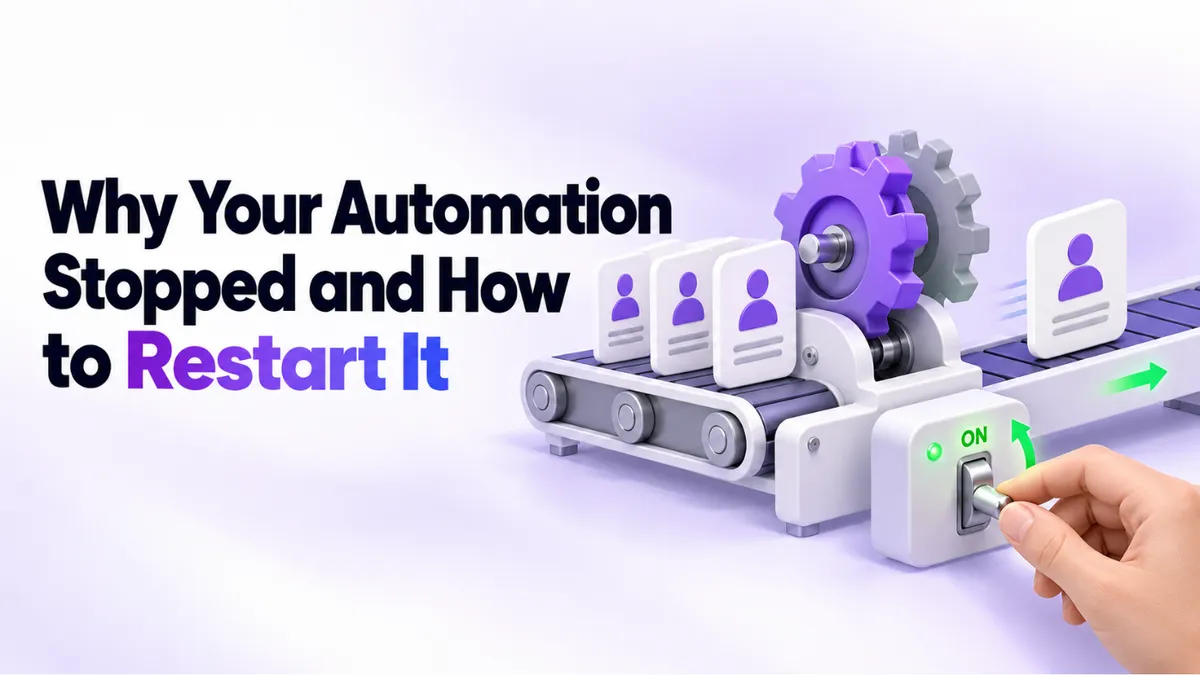
Think of an automation as a moving walkway. The trigger is the gate at the front: it decides who steps on. Once a contact is on the walkway, they move through each step (wait three days, send the reminder, wait a week, send the next one) until they reach the end.
Here's the part that catches people out. The gate only checks contacts at the moment they qualify. It doesn't continuously re-scan your whole database asking "who should be on this walkway?" So if the gate changes while people are mid-ride, the system has to decide what to do with them. In most platforms, including PulseGrowth, an all-in-one CRM and automation platform for service businesses, contacts who no longer match the new conditions simply stop qualifying. They step off, quietly.
Why Did Editing the Trigger Break It?
Because the edit redefined who belongs in the workflow, and nobody re-invited the people who were already there. The automation keeps showing as active because it is active. It's just standing at the gate waiting for new arrivals that match the new conditions, while the two hundred contacts who used to get your weekly reminder are standing outside with no idea anything changed.
This is why the problem is so sneaky. Nothing errors. Nothing turns red. A reminder sequence can look perfectly healthy and send nothing for weeks, and you only find out when a customer mentions they haven't heard from you lately.
What's the Safe Way to Edit a Live Automation?
A four-step habit that takes ten extra minutes and saves a month of silent failure:
- Screenshot or note the current trigger first. Before you touch anything, record exactly what the conditions are. If the edit goes sideways, you can put it back.
- Check who's currently enrolled. Know the number before the edit, so you can compare it after.
- Make the edit, then re-check enrollment. If two hundred people were in before and twelve are in after, the edit dropped people and you can fix it now instead of discovering it in a month.
- Send yourself a test. Add your own contact record to the workflow and confirm the next message actually goes out.
If the workflow matters to revenue (reminders, follow-ups, renewals), consider duplicating it, editing the copy, testing it, and then switching over. Live surgery on the only copy of a working automation is how most of these stories start. It's the same reason we tell people to automate carefully and in the right order; our guide on what to automate first in your business covers that bigger picture.
How Do You Re-Enroll the Contacts That Dropped Out?
You add them back in bulk, and it's less painful than it sounds:
- Open the list of people who should be in the workflow. A smart list or saved segment is ideal, something like "everyone tagged as a member."
- Select all of them, then use the bulk action to add them to the workflow.
- Spot-check a handful of contacts afterward to confirm they show as enrolled and sitting at the right step.
One thing to decide before you click: should returning contacts start from the beginning of the sequence or skip ahead? For a weekly reminder, starting from the top is usually fine. For a numbered email course, you may want to re-enroll in batches so nobody gets lesson one twice. If you're not sure, this is a great thing to ask your platform's support team to sanity-check with you. At PulseGrowth we do this kind of re-enrollment for customers routinely; it's a support request, not a crisis.
How Do You Make Sure It Never Happens Again?
Give the workflow an automatic entry trigger instead of relying on one-time manual adds. Two good options:
Trigger by tag. Anyone who gets a specific tag (say, "member") is added to the workflow automatically. Future signups enroll themselves and you never think about it again.
Trigger by smart list. Anyone who matches a saved filter gets added when they match it.
And here's the detail that bites even experienced users: if your trigger uses multiple tags, be precise about whether you mean ALL of them or ANY of them. "Add anyone with the tags member, newsletter, and vip" can mean two very different workflows. ANY of the three casts a wide net; ALL three is a narrow, deliberate one. Most platforms default to one behavior, so check which one your trigger is actually using before you walk away. Getting this wrong either floods the workflow with the wrong people or quietly excludes the right ones.
This applies to every service business running reminders: coaches with weekly program emails, clinics and med spas with appointment nudges, home services with maintenance follow-ups, local businesses with review requests. If appointment reminders are the workflow you care about most, our step-by-step guide to setting up appointment reminders shows the full build.
Key Takeaways
- Editing a live workflow's trigger changes who is enrolled, and dropped contacts never come back on their own.
- An automation can show as active and healthy while sending to nobody, so check enrollment counts, not just status.
- Before editing a trigger, note the current conditions and the enrollment number so you can compare after.
- Re-enroll dropped contacts in bulk from a smart list, then spot-check that they sit at the right step.
- Set automatic enrollment by tag or smart list, and confirm whether multi-tag triggers mean ALL tags or ANY tag.
FAQs
Why is my automation active but not sending anything?
Almost always because nobody is enrolled in it. A trigger edit, a changed tag, or a deleted list can empty a workflow without any visible error. Check the enrollment count before you rebuild anything.
Do contacts re-enter a workflow after I fix the trigger?
No. Fixing the trigger only affects people who qualify from that moment forward. Anyone who dropped out during the edit has to be added back manually or by a bulk action.
Will re-enrolled contacts get messages they already received?
They can, if the workflow restarts them from the top. For simple recurring reminders that's usually harmless. For numbered sequences, re-enroll carefully or start people at a later step.
Is it safe to edit an automation while it's running?
Small copy edits to a message, yes. Trigger and condition changes deserve more care: note the old settings, compare enrollment before and after, and test with your own contact. For revenue-critical workflows, duplicate and test first.
What's the difference between ALL tags and ANY tag in a trigger?
ALL means a contact needs every listed tag to enter the workflow. ANY means one tag is enough. The two settings can produce wildly different audiences from the same tag list, so always confirm which one is selected.
Want More Like This?
If an automation in your business has gone quiet and you'd rather not perform the surgery alone, start a free 14 day trial of PulseGrowth. Our team helps you set it up: calendar, business email, phone number, and your first workflows built with the right triggers from day one. Start free, and we'll help you get it set up.
The PulseGrowth Team


