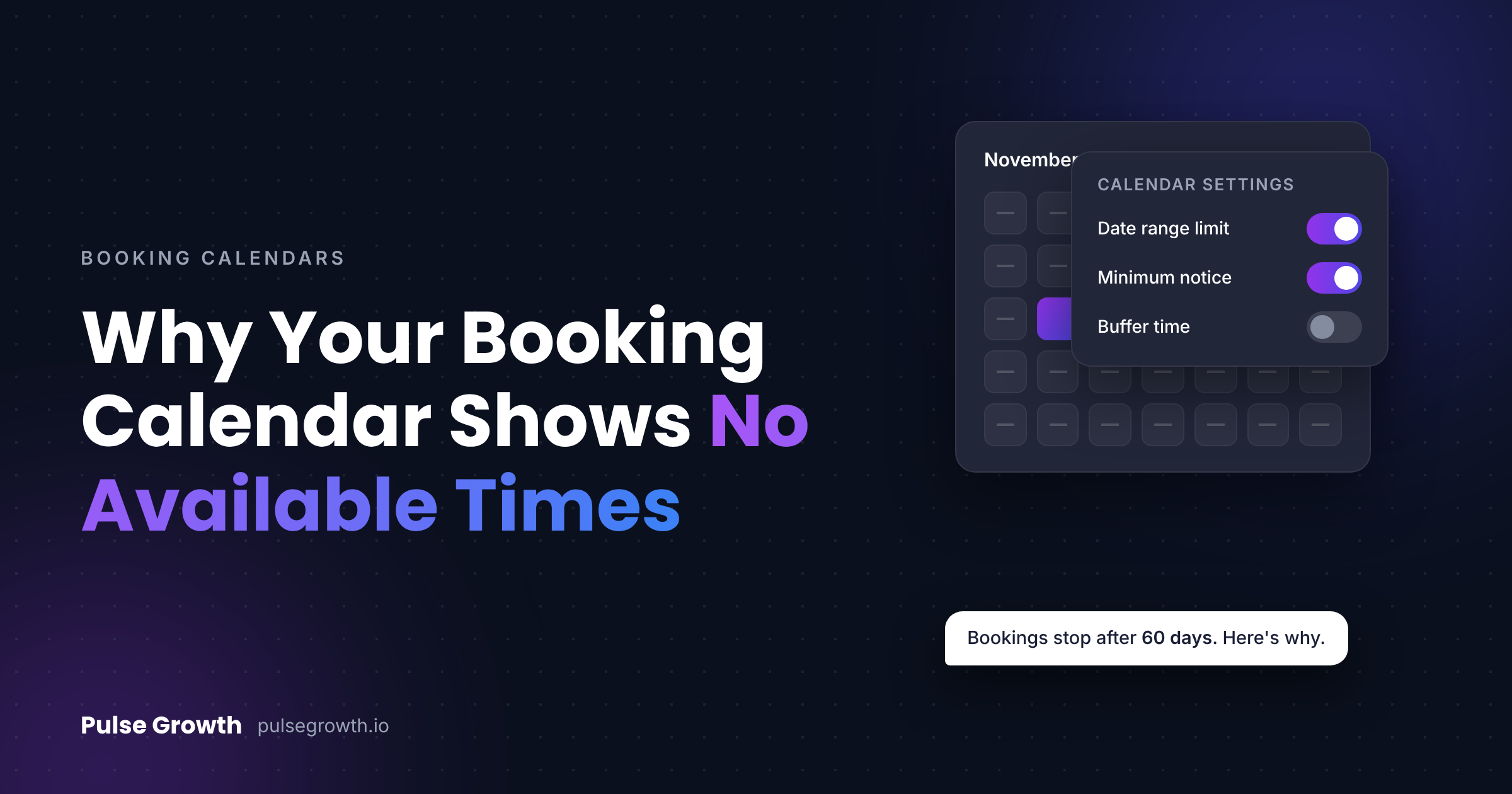
Why Is Your Booking Calendar Not Showing Available Times?
A business owner wrote to our support team this month with a mystery: their booking calendar would only let customers book about 60 days out. Nothing looked broken, nobody had changed anything on purpose, and yet half the slots people wanted simply weren't there.
The calendar wasn't broken. One setting was doing exactly what it was told. That's the thing about a booking calendar not showing availability: it's almost never a bug, it's a setting, and there's a short list of suspects. Here's the check order we use.
Quick Answer: Why is my booking calendar not showing availability?
A booking calendar not showing availability is usually caused by one of five settings: the date range (how far into the future people can book), the availability windows (which days and hours are open), the minimum scheduling notice (how soon someone can book), buffer times between appointments, or a team member with no available hours assigned. Check them in that order and you'll usually find the culprit in minutes. In PulseGrowth, you can also ask Calendar AI to troubleshoot the calendar for you.
Why do calendars "break" when nobody touched them?
Because booking calendars are a stack of settings that all have to agree before a slot appears. The calendar only shows a time when the date range allows it, the availability window includes it, the notice period has passed, no buffer is blocking it, and someone on the team is actually free. One strict setting anywhere in that chain and whole days go quiet, which is why a calendar can look broken while doing precisely what it was configured to do, possibly by someone who left the company in March.
What are the five settings to check, in order?
1. The date range. This controls how far into the future customers can book. That's what our 60 day mystery turned out to be: the calendar was set to open bookings only 60 days ahead, so everything past that horizon looked unavailable. If customers say "I can't book for the date I want," start here.
2. The availability windows. These are the days and hours the calendar offers. It's surprisingly easy to have Tuesday unticked, or hours set to 9 to 12 when you meant 9 to 5, or a window that was narrowed for a holiday and never widened again. Check each day's hours, not just the days.
3. The minimum scheduling notice. This decides how close to the appointment someone can book. A 48 hour notice means today and tomorrow always look full, even when you're free. Generous notice settings are a common reason the calendar looks empty for the next few days and fine after that.
4. Buffer times. Buffers add breathing room before or after each appointment. Useful, until a 30 minute buffer around 60 minute appointments quietly halves your bookable day. If slots look thinner than your actual diary, buffers are the likely thief.
5. Team member availability. On team calendars, a slot only shows when an assigned person is free. A staff member with no working hours set, or a connected personal calendar full of busy events, can blank out availability for everyone who books with them. If one person's slots are missing, the setting is usually theirs, not the calendar's.
Not sure your calendar is even the right type for how your business books? Our guide to the types of booking calendars explains which setup fits which business.
Can AI troubleshoot the calendar for you?
Yes, and this is the shortcut worth knowing about. PulseGrowth, an all-in-one CRM and automation platform for service businesses, includes a feature called Calendar AI that can check a misbehaving calendar for you.
Go to the Calendars tab and click the Calendar AI button. Instead of opening every setting yourself, describe the problem in plain language, like "customers can't see any available times on my consultation calendar this week." Calendar AI checks the calendar's configuration, identifies what may be causing the issue, and gives you a suggested fix. It's the same feature that can build a calendar from a plain description, which we walked through in how to set up a booking calendar with AI. Calendar AI is part of the platform's AI toolkit, alongside the AI communication features.
Here's the full Calendar AI walkthrough, including the troubleshooting side:
How do you test the fix before telling customers it's solved?
Open your own booking link the way a customer would, in a private browser window, and try to book. Can you see the days you expect? The hours? Both next week and two months out?
If something still looks wrong, change one setting at a time and re-test after each change. Changing three settings at once is how calendars end up with a second, stranger problem on top of the first one. And once a real appointment books correctly end to end, you can call it fixed with a straight face.
Which businesses does this hit hardest?
This checklist is good for any business where an empty calendar quietly costs money: salons, med spas, and clinics whose clients book weeks ahead and hit date range limits; consultants and coaches whose generous notice settings make them look booked solid; home services teams where one technician's missing hours blank out a whole service area; and multi-staff practices where team availability and buffers interact in creative ways. If customers book you online, a silent calendar problem is a silent revenue problem, and it deserves a five minute check before anyone concludes "the software is broken."
Key Takeaways
- A calendar that shows no available times is almost always a settings issue, not a bug.
- Check in order: date range, availability windows, minimum scheduling notice, buffer times, then team member availability.
- In PulseGrowth, Calendar AI can troubleshoot a calendar for you: describe the problem in plain language and it suggests the fix.
- Test like a customer, in a private browser window, changing one setting at a time.
- Recheck the calendar after staff changes or holiday hours, because those edits are where most "mystery" problems start.
FAQs
Why does my calendar only show times a few days from now?
That's usually the minimum scheduling notice. If it's set to 24 or 48 hours, the nearest slots are hidden even when you're free. Lower the notice period and the near-term slots reappear.
Why can customers only book a month or two ahead?
That's the date range setting, which caps how far into the future bookings open. Extend the range and the later dates become bookable. This was exactly the 60 day case that prompted this post.
Why do some team members show availability and others don't?
Each team member needs their own working hours set, and a connected personal calendar full of busy events will block their slots. Check the individual's availability and synced calendar before touching the main calendar settings.
Why did my calendar change when nobody edited it?
Something it depends on changed: a synced personal calendar added busy events, a team member's hours were adjusted, or holiday hours were set and never reverted. The calendar reflects all of it, which is why it can shift without anyone opening its settings.
Does Calendar AI fix the problem automatically?
It checks the calendar's configuration, identifies the likely cause, and gives you information and a suggested solution. You stay in control of the actual change, which is how most owners prefer it.
Want more like this?
If you'd rather have booking that just works, with an AI assistant on call when it doesn't, start your free 14 day trial of PulseGrowth, with calendars, Calendar AI, automations, and unlimited users included. Start free, and we'll help you get it set up.
The PulseGrowth Team


