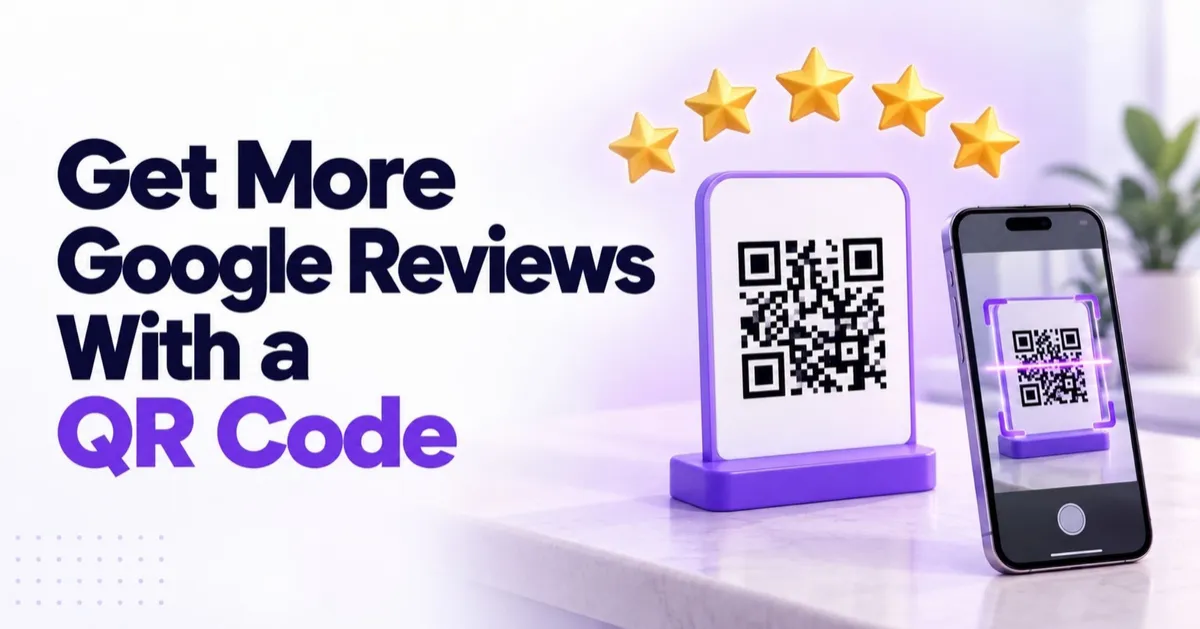
How to Create a QR Code for Google Reviews (So Customers Review You on the Spot)
The best moment to ask for a Google review is about thirty seconds after you've made someone happy. Not three days later by email, when the glow has worn off and your message is sitting under forty others. A printed QR code at your counter catches customers at exactly that moment: they scan, they tap, they review, done before they've even left the building.
Quick Answer: How Do You Create a QR Code for Google Reviews?
In PulseGrowth, an all-in-one CRM and automation platform for service businesses, you create a review QR code from the Reputation section: go to Reputation, then Settings, then Reviews QR, and click Create QR Code. You can edit the text, change the background and text colors to match your branding, and save. Then click the three dots icon, choose Download, and print it. Anyone who scans the code is taken straight to your Google review page, so customers can leave a review on the spot.
Why Do Review QR Codes Work So Well?
Because timing beats everything else in review collection. A customer who just had a great haircut, a smooth appointment, or a fixed boiler is at their most generous right now. Put a small stand by the till or the reception desk and the review happens while the feeling is real.
Compare that with the classic approach: a follow-up email two days later. It works, and we still recommend it as a backup, but every hour between the service and the ask costs you reviews.
This is built for businesses that see customers face to face: salons and barbershops, med spas and clinics, restaurants and cafes, gyms, dental practices, auto shops, and home service teams who can hand over a card at the door. If your customer is physically in front of you when they're happiest, a QR code turns that moment into a review.
How Do You Create a Review QR Code in PulseGrowth, Step by Step?
The whole thing takes a few minutes.
- Log in to your PulseGrowth account and go to Reputation.
- Open Settings, then click Reviews QR.
- Click Create QR Code (or the New button).
- Your QR code appears on screen. Edit the text so it invites the scan, something like "Enjoyed your visit? Leave us a review".
- Customize the design: change the background color and text color to match your branding.
- Click Save.
- To download it, click the three dots icon and select Download.
Print it, and it's ready for the counter.
A quick note on what this feature does and doesn't do. The QR code sends people to your review page; it doesn't write the review for them or filter who can scan it. Happy and unhappy customers get the same link, which is exactly how Google wants it, so keep an eye on what comes in and reply to everything. One more practical tip: print it larger than feels necessary and test the scan from a normal standing distance before you laminate fifty copies.
Where Should You Place Your Review QR Code?
Anywhere the happy moment happens:
- A small stand at the counter or reception desk, eye level while people pay.
- On the back of business cards or thank-you cards handed over at the end of a job.
- On receipts, invoices, and packaging.
- A sticker in the van or on the door for home service businesses.
- Table tents for restaurants and cafes.
One placement rule: put it where the service just ended, not where it's about to start. A QR code in the waiting room asks for a review from someone who hasn't been helped yet.
Why Do Steady Google Reviews Matter So Much for Local Businesses?
Google's local results reward businesses that collect reviews steadily, not in bursts. A stream of recent reviews tells Google you're active, busy, and trusted right now, which helps you show up higher when someone nearby searches for what you do. Reviews are also the first thing a potential customer reads. More recent reviews, better local visibility, more calls. It compounds quietly, month after month.
The QR code handles customers standing in front of you. For the ones who've left, PulseGrowth can send automated review requests by text or email after each visit, and reviews are only one kind of social proof. When you're ready for the heavier artillery, here's how to collect video testimonials from your customers too. If you'd like the whole reputation engine running without you touching it, our AI communication tools can even draft replies to the reviews as they arrive.
Key Takeaways
- Ask for reviews at the happiest moment: right after the service, while the customer is still with you.
- Create your code in minutes: Reputation, then Settings, then Reviews QR, then Create QR Code.
- Brand it: match the background and text colors to your business, and make the text an invitation.
- Place it where the service ends: counter, receipts, thank-you cards, the van door.
- Collect steadily: a regular flow of recent Google reviews lifts local visibility more than occasional bursts.
FAQs
How does a QR code for Google reviews work?
The QR code contains a link to your Google review page. When a customer scans it with their phone camera, the review form opens and they can leave a rating and comment on the spot. No app, no typing your business name into Google.
Can I customize the design of my review QR code?
Yes. In PulseGrowth you can edit the text on the QR code and change the background and text colors to match your branding, so the printed version looks like part of your business rather than a generic black and white square.
Is it against Google's rules to ask for reviews with a QR code?
No. Asking customers for reviews is fine. What Google prohibits is offering rewards for reviews or showing the link only to happy customers. Give everyone the same code and you're on the right side of the rules.
Where's the best place to put a review QR code?
Wherever your service just ended: the payment counter, reception desk, receipts, thank-you cards, or the back of a business card. For home services, a card handed over at the door works well.
Do Google reviews really help my business get found?
Yes. Review quantity, quality, and recency all feed Google's local rankings, and reviews are usually the first thing potential customers read. A steady flow of recent reviews improves both your visibility and your conversion.
Want More Like This?
The QR code is the start. Start a free 14 day trial of PulseGrowth and you'll also get automated review requests, a shared inbox, and follow-up that runs itself. Start free, and we'll help you get it set up.
The PulseGrowth Team


