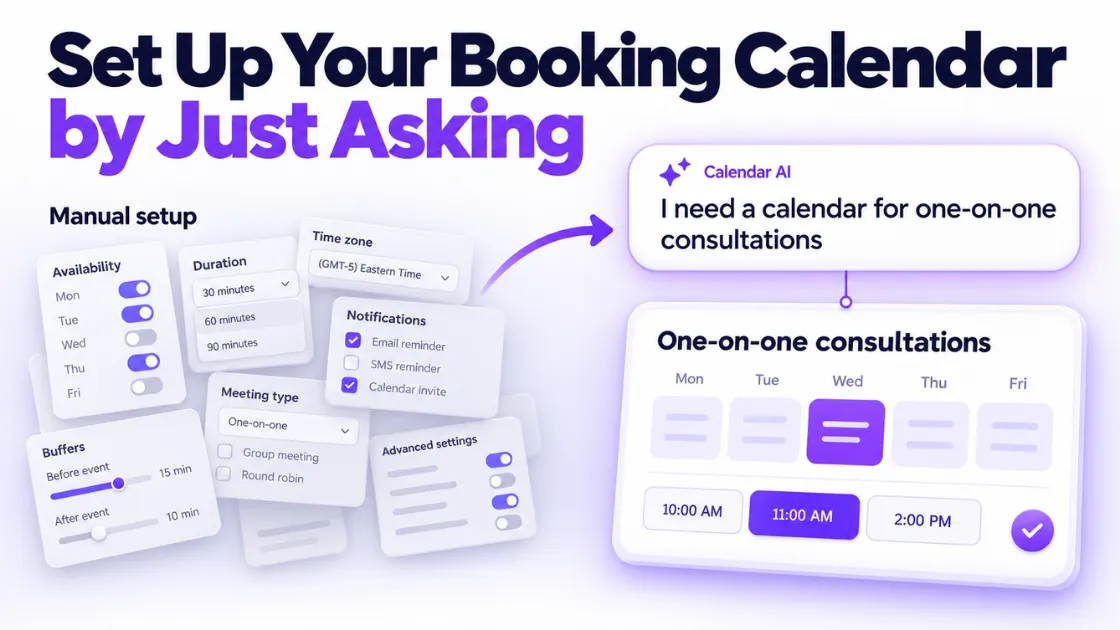
How to Set Up a Booking Calendar with AI (Calendar AI)
Booking calendars are one of those features everyone needs and nobody enjoys setting up. Calendar types, availability windows, buffers, team assignments, meeting locations. By toggle number fourteen, most business owners are just clicking things and hoping.
PulseGrowth, an all-in-one CRM and automation platform for service businesses, now has a way around all of that. It's called Calendar AI, and it lets you set up a booking calendar with AI by describing what you need in everyday language. Here's how it works, step by step.
Quick Answer: How do you set up a booking calendar with AI?
In PulseGrowth, go to the Calendars tab and click the Calendar AI button. Type what you need in plain language, like "I need a calendar for one-on-one consultations," and Calendar AI picks the right calendar type, asks a few questions about how you want bookings to work, then shows you the suggested setup for approval before creating the calendar. It can also make changes to existing calendars and troubleshoot ones where booking slots aren't showing correctly.
Prefer to see it rather than read it? Here's the full walkthrough:
Where do you find Calendar AI in PulseGrowth?
Log in to your PulseGrowth account and go to the Calendars tab. Inside the Calendars section you'll see the new Calendar AI button. Click it and the Calendar AI section opens.
From here, you type any calendar-related request the way you'd explain the task to a member of your team. Calendar AI reads the request, asks for any extra information it needs, and then walks you through the process. You can use it to create a new calendar, configure settings, make changes, or troubleshoot a calendar that's misbehaving.
How does Calendar AI create a new calendar?
Click Create Calendar to begin. Calendar AI starts by asking what type of calendar you'd like to create.
This first question is where Calendar AI earns its keep, because choosing a calendar type is the step most people get wrong. If you already know which type you need, just select it. If you're not sure, describe what you plan to use the calendar for: one-on-one consultations, appointments spread across your team, a class, a service, or another kind of booking. Calendar AI works out the appropriate calendar type from your description. (If you want the background on what those types actually mean, our guide to the types of booking calendars breaks them all down.)
Next, Calendar AI asks you to name the calendar. Pick something you and your team will recognize later. After that, it may ask a few more questions about how you want the calendar to work. Answer each one in normal language. You don't need to know every technical setting inside PulseGrowth; that's the entire point.
What happens before the calendar goes live?
Once you've answered its questions, Calendar AI presents its suggested setup. Nothing gets created until you've looked at it.
If everything looks right, tell it to go ahead and it creates the calendar. If something's off, tell it what needs to be different, and keep adjusting until the setup matches what you need. It's a conversation, not a form.
After the calendar is created, you still have full control. Click Go to Calendar Settings to open the calendar and review its configuration, and fine-tune anything manually if you want to. The AI handles the setup; the settings stay yours.
Can Calendar AI fix a calendar that isn't working?
Yes, and this might be the most quietly useful part. Say you have a calendar where available appointment slots aren't appearing, or customers keep telling you they can't book. Normally you'd check every setting one by one, which is nobody's idea of a good morning.
Instead, ask Calendar AI to troubleshoot the specific calendar. Explain the problem you're seeing, and it checks the calendar's configuration to identify what may be causing it, then gives you information and a suggested fix. So Calendar AI isn't only for day one. It's for the Tuesday three months later when bookings mysteriously stop.
Which businesses is this good for?
Anyone who books time and doesn't have a person whose job is software. Coaches and consultants running one-on-one sessions. Salons, med spas, and clinics juggling appointments across a team. Trainers and studios filling classes. Home services businesses scheduling jobs. If the phrase "I'll just set up the calendar this weekend" has ever haunted you, this feature was built for you.
And once the calendar exists, the bookings are only half the battle. Getting people to actually show up is the other half, which is why we'd pair any new calendar with automated appointment reminders and the follow-up habits from our post on reducing appointment no-shows.
Key Takeaways
- Calendar AI lives under the Calendars tab in PulseGrowth: click the Calendar AI button and type what you need.
- Describe what the calendar is for in plain language and Calendar AI picks the right calendar type for you.
- Review the suggested setup and request changes in the chat until it's right; nothing is created until you approve it.
- Use the troubleshooting side to diagnose calendars where booking slots won't show, instead of checking settings by hand.
- You keep full manual control afterward through Go to Calendar Settings.
FAQs
Do I need to know which calendar type to choose before I start?
No. If you know it, select it. If you don't, describe what you're using the calendar for and Calendar AI determines the appropriate type from your answer.
Can Calendar AI change a calendar I already have?
Yes. You can ask it to make changes to an existing calendar or to troubleshoot one that isn't behaving, like a calendar whose available slots aren't appearing for customers.
Will the calendar be created before I've seen the setup?
No. Calendar AI always presents its suggested setup first. You review it, request any changes, and the calendar is only created once you tell it to go ahead.
Can I still edit the calendar settings myself afterward?
Yes. After creation, click Go to Calendar Settings to open the full configuration and adjust anything manually. Calendar AI doesn't lock you out of anything.
Is Calendar AI a separate product from PulseGrowth?
No. It's a built-in feature of the PulseGrowth platform, found inside the Calendars tab of your account.
Want more like this?
The best way to test Calendar AI is on your own bookings. Start your free 14 day trial of PulseGrowth, with calendars, automations, AI tools, and unlimited users included. Start free, and we'll help you get it set up.
The PulseGrowth Team


