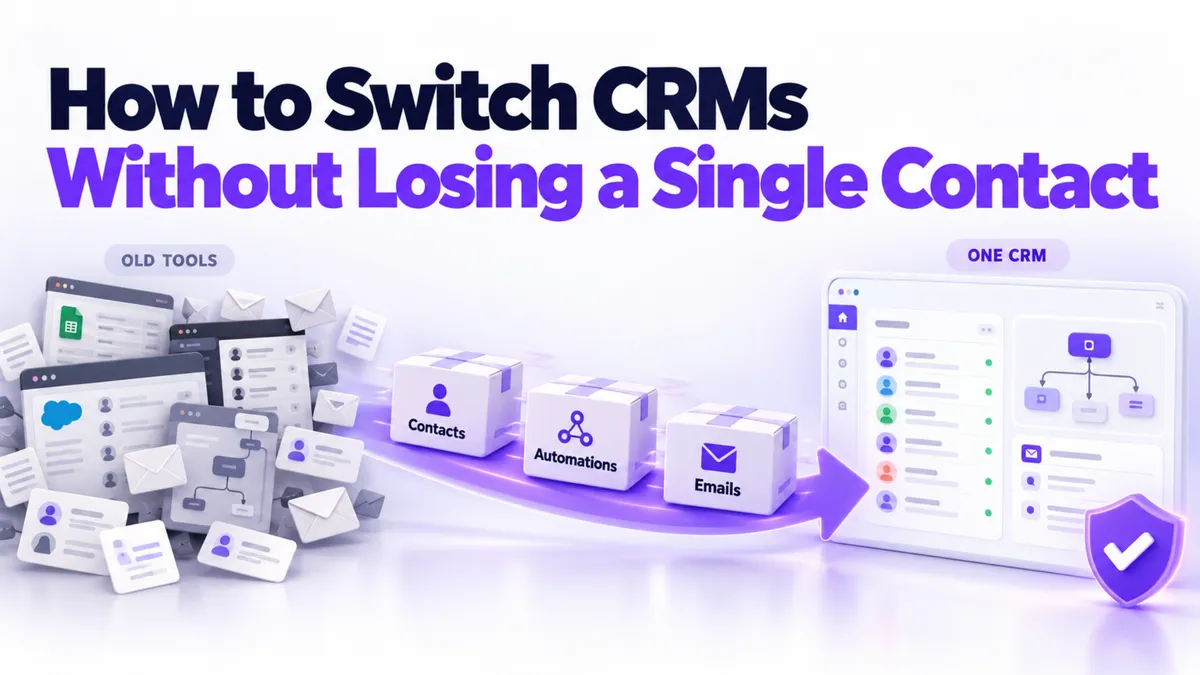
Switching CRMs? How to Migrate Contacts and Automations Without Losing Anything
Most business owners don't stay on four separate tools because they love them. They stay because the move feels like open heart surgery on the thing that pays their bills. We talk to owners every week who've outgrown their setup, know exactly what they want instead, and haven't switched because one question keeps stopping them: what if I lose everything?
Fair question. Here's the honest answer.
Quick Answer: Can you switch CRMs without losing data?
Yes. Your contacts, tags, custom fields, and email lists export from almost any system and import into the new one. Your automations and email templates don't copy across directly, so those get rebuilt in the new platform, usually in a few hours once the logic is written down. The safe method is to migrate in order, run both systems side by side for a short overlap, and only cancel the old one after the new one has proven itself.
What actually transfers when you switch CRMs?
More than most owners expect, and less than the word "migration" implies. It helps to sort everything into three buckets.
Moves cleanly:
- Contacts, with their names, emails, phone numbers, and notes. Every serious system exports these as a CSV file.
- Tags and list segments, so your "past clients" stay separate from your "newsletter only" crowd.
- Custom fields, as long as you create the matching fields in the new system before importing.
- Your unsubscribe list. This one is easy to forget and legally not optional. Suppressed contacts must stay suppressed.
Gets rebuilt:
- Automations. The logic transfers because you can read it and write it down. The automation itself doesn't, since every platform builds workflows its own way.
- Email templates. The words copy and paste. The design usually needs rebuilding in the new editor, because formatting rarely survives the trip.
- Booking calendars, which reconnect to your Google or Outlook calendar in the new system.
Stays where it is:
- Your Google reviews and your social accounts. Those live on their platforms, not in your CRM, and simply reconnect.
- Your domain. It gets repointed, not moved, and it keeps the sending reputation it has earned.
For scale: a typical move we see is an owner with a website builder, a separate CRM, an email tool, and a checkout cart, with a few thousand contacts and a couple dozen automations spread across them. One recent conversation involved 4,500 contacts and 24 automations. That sounds like a mountain. Exported and imported, the contacts took minutes. The automations were the real work, and even those were a rebuild measured in hours, not weeks.
What order should you migrate in?
Order is what separates a smooth switch from a stressful one. Do it like this:
- Export everything from the old system first. Contacts, tags, the unsubscribe list, and a written copy of every automation: what triggers it, what it sends, and when. This export is also your backup, so keep it even after the move is done.
- Set up your sending foundations in the new system. Connect your domain, set up your email sending records, and get your phone number registered for texting before you need it. This is the least glamorous step and the one that decides whether your emails land in inboxes. We covered the details in How to Set Up a Dedicated Email Sending Domain.
- Import contacts with their tags and fields. Run a small test batch of 20 contacts first, check that everything landed in the right fields, then import the rest.
- Rebuild automations one at a time, starting with the money ones. New lead follow-up and appointment reminders first. The birthday email can wait a week.
- Reconnect calendars, payments, and social accounts. Mostly a parade of "click connect, log in, done."
- Run both systems in parallel briefly. Keep the old system alive for two to four weeks while the new one does the real work. You're not using both. You're keeping a parachute.
What should you check before switching the old system off?
Cancel only after the new system has passed a real-world test, not a demo. Our checklist:
- You've sent at least one actual email campaign from the new system and watched it land in inboxes, not spam folders.
- A real customer has booked through the new calendar and received their confirmation and reminder.
- Each rebuilt automation has fired at least once on a live contact, and you've read what it sent.
- Contact counts match. The number you exported is the number you imported, minus duplicates you chose to merge.
- Your export files are saved somewhere safe outside both systems.
- You've checked the old account for anything that still auto-renews: domains, numbers, or add-ons that bill separately.
Every box ticked? Cancel with a clear conscience. The fear of switching is almost always bigger than the switch, and the owners who put it off for a year usually say the same thing afterward: they wish they'd stopped paying for four tools sooner. We did the math on that overlap in 5 Hidden Costs of Multiple Software Subscriptions, and if you're still weighing what kind of system to move to, CRM vs. All-in-One Platform walks through that decision.
One more honest note: the step where most do-it-yourself migrations stall is the sending setup, the domain records and text registration behind step two. It's technical, it's unforgiving, and it's exactly the part we do for you when you join PulseGrowth, an all-in-one CRM and automation platform for service businesses. Setup help, including importing your contacts and migrating your emails, is part of how we onboard. This is good for coaches, consultants, clinics, and local service businesses that want the result without becoming DNS experts along the way.
Key Takeaways
- Export contacts, tags, your unsubscribe list, and a written copy of every automation before touching anything else.
- Set up your domain and sending foundations in the new system first, because deliverability is won or lost there.
- Import a 20 contact test batch before the full list, and rebuild the revenue automations before the nice-to-haves.
- Run old and new side by side for two to four weeks as your safety net.
- Cancel the old system only after a real campaign, a real booking, and a real automation have each worked on the new one.
FAQs
Will I lose my contacts if I switch CRMs?
No. Contacts export from virtually every CRM as a CSV file and import into the new system with their tags and details intact. The only way to lose them is to close the old account before exporting, so export first and keep the file.
Do automations transfer between CRMs?
Not automatically. Automations are rebuilt in the new platform using the old ones as the blueprint. Write down each trigger, message, and delay before you move, and the rebuild becomes a few focused hours rather than guesswork.
How long does a CRM migration take?
For a typical service business, the contact import takes minutes and the full move takes one to two weeks alongside normal work, mostly spent rebuilding automations and testing. The parallel running period adds two to four weeks of safety on top, but the new system is doing the real work during that time.
Should I cancel my old CRM right away?
No. Keep it running for two to four weeks while the new system handles your live leads and bookings. Cancel once your checklist is clear: campaign sent, booking completed, automations fired, contact counts matched, exports saved.
Can someone do the CRM migration for me?
Yes. With PulseGrowth, setup help is included when you join: we handle the domain and sending setup, import your contacts, and help migrate your emails, which covers the steps where most self-managed moves get stuck.
Want more like this?
PulseGrowth comes with a free 14 day trial that puts your CRM, email, calendars, funnels, and automations in one place. Start free, and we'll help you get it set up, including moving your contacts in. Start your free 14 day trial here.
The PulseGrowth Team


