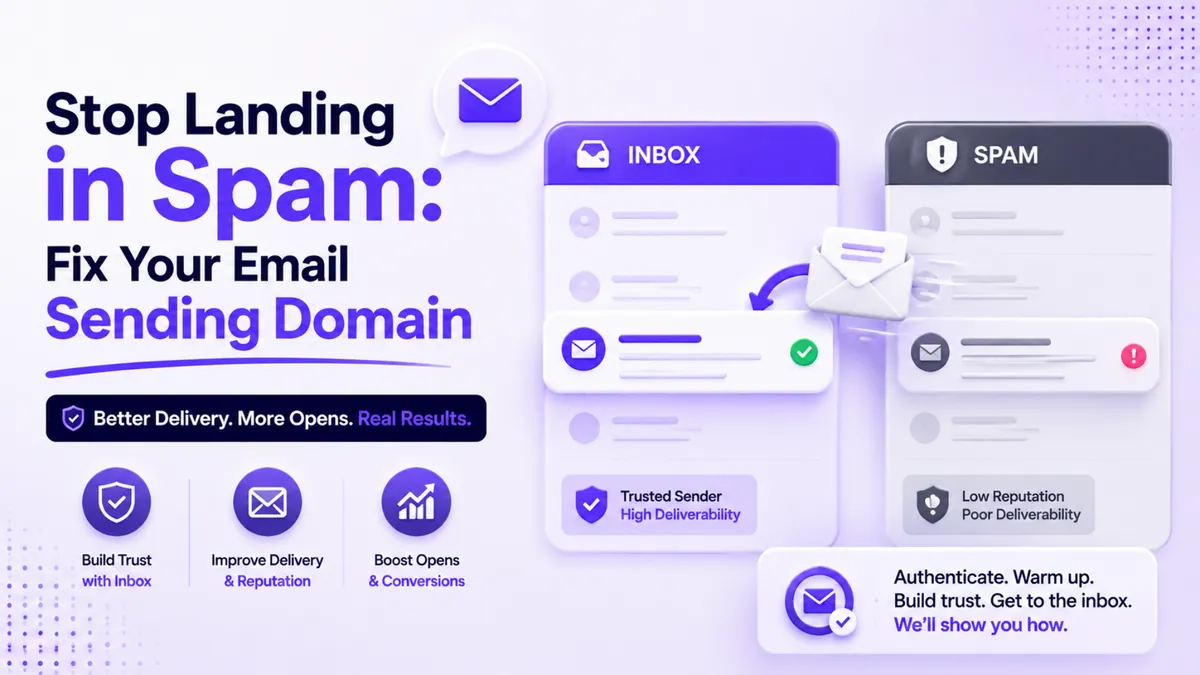
Why Are My Emails Going to Spam? (And How to Fix It)
You wrote a good email. You hit send. And it landed in a folder nobody has opened since 2019. If your open rates have quietly collapsed, your emails probably aren't being ignored. They're being filed away as spam before anyone sees them.
Quick Answer
The most common reason emails go to spam is sending from a shared or default domain that inbox providers don't trust, without any warm-up. The fix is to set up a dedicated sending domain, verify its DNS records, warm it up gradually with around 1,000 emails to 1,000 unique contacts, and configure your sender name and address. In PulseGrowth this is done under Settings, then Email Services, then Dedicated Domain and IP.
Why do emails end up in spam in the first place?
Inbox providers like Gmail and Outlook judge every email by the reputation of the domain that sent it. When you send from a default shared domain, you're sharing that reputation with every other sender on it. You could be sending lovely, wanted emails and still inherit someone else's bad habits.
A dedicated sending domain fixes that. It's your own address to send from, with your own reputation attached. You build it once, protect it, and your deliverability stops depending on strangers. This matters for any business that emails its list regularly: coaches sending weekly newsletters, clinics and med spas sending appointment offers, salons announcing openings, home services running seasonal promotions. If email brings you bookings, this is worth an afternoon.
How do you set up a dedicated sending domain in PulseGrowth?
PulseGrowth, an all-in-one CRM and automation platform for service businesses, has this built in. Here's the path.
Go to Settings, then Email Services, then Dedicated Domain and IP. Click Add Domain. You'll be asked to enter the domain you want to send from, and the common practice is a subdomain: something like hello.yourdomain.com, mail.yourdomain.com, or reply.yourdomain.com. Using a subdomain keeps your marketing email separate from your main business domain, which protects your main domain's reputation.
Enter your subdomain and click Add and Verify, then Continue. If your domain provider supports automatic authorization, PulseGrowth verifies everything for you in a few moments and you're done. If it doesn't, the system shows you the exact DNS records to add. Log in to wherever you bought your domain, add the records exactly as shown, and save. DNS changes can take anywhere from a few minutes to several hours to propagate, so if verification doesn't pass immediately, that's normal. Come back and click Verify once the records have had time to settle.
Here's the full walkthrough on video:
What is domain warm-up, and can you skip it?
You can skip it the way you can skip stretching before a run. Nothing stops you, but you'll regret it.
A brand new sending domain has no reputation at all, and inbox providers treat unknown senders with suspicion. Warm-up is how you introduce yourself politely. In the first stage, you send roughly 1,000 emails spread gradually through the day, not blasted out in one go, and to roughly 1,000 unique contacts. Small, steady batches look like a real sender behaving normally. One huge blast from a day-old domain looks like exactly what spam filters exist to catch.
Once that first stage is complete, follow the recommended instructions for the next phases and increase volume gradually. Slow and boring wins here. It's one of the best things you can do for long-term inbox placement.
What else improves email deliverability?
Two settings are worth doing while you're in there.
First, your email headers. In the dedicated domain settings you can set the sender name and from address people see, like your company name sending from [email protected]. Pick something recognizable and keep it consistent, because people open emails from senders they recognize and report the ones they don't.
Second, Google Postmaster Tools. If you send larger volumes, connecting your verified domain to Google Postmaster gives you a view of your sender reputation, spam rates, and authentication status with Gmail. It's optional, but it's the closest thing you get to seeing your reputation the way Gmail sees it.
And a quiet word of caution: a trusted domain gets your email delivered, but only useful email keeps it that way. If deliverability tanked because people stopped opening, the fix is better emails, not just better DNS. For ideas on what to send, there's plenty on our blog, and once your domain is verified, the automations in PulseGrowth can handle the follow-up sequences for you.
Key Takeaways
- Set up a dedicated sending domain instead of sending from a shared default domain, because shared reputation is the most common cause of spam placement.
- Use a subdomain like hello.yourdomain.com to protect your main domain's reputation.
- Verify your DNS records in Settings, then Email Services, then Dedicated Domain and IP, and allow time for changes to propagate.
- Warm up the new domain with about 1,000 emails sent gradually to 1,000 unique contacts before increasing volume.
- Set a recognizable sender name and address, and connect Google Postmaster if you send at volume.
FAQs
Should I send marketing emails from my main business domain?
It's safer to use a dedicated subdomain, like mail.yourdomain.com. If your marketing ever hurts your sending reputation, your main domain and your day-to-day business email stay protected.
How long does DNS verification take?
Sometimes minutes, sometimes several hours. It depends on your domain provider. If verification fails right after you add the records, wait a while and try again before changing anything.
What happens if I skip the warm-up?
Your first big send goes out from a domain with no reputation, which is exactly the pattern spam filters watch for. Skipping warm-up can hurt deliverability for weeks. The gradual approach costs you a few days and protects every send after it.
Will a dedicated domain guarantee my emails reach the inbox?
No single setting can guarantee that. It removes the most common cause of spam placement, and combined with warm-up, consistent sender details, and emails people actually want, it gives you the best possible odds.
Do I need Google Postmaster Tools?
Not to get started. It's recommended once you send larger volumes, because it shows you how Gmail rates your domain's reputation and flags problems early.
Want more like this?
PulseGrowth includes email sending with dedicated domain support, plus the CRM, automations, and booking tools to put your list to work. Try everything free for 14 days. Start free, and we'll help you get it set up, including the domain setup from this post. Start your free 14 day trial here.
The PulseGrowth Team


