How to Create and Send Email Campaigns from Your CRM
Most business owners can build a decent looking email. The part that goes wrong is everything after the design: who gets it, whether it lands in the inbox, and what happens to everyone who never opens it. Here's how to send an email campaign from your CRM, start to finish, including the settings that quietly decide how well it performs.
Quick Answer: How to Send an Email Campaign
To send an email campaign in PulseGrowth, an all-in-one CRM and automation platform for service businesses, go to Marketing, then Emails, then open the Campaigns tab and click Create Campaign. Build the email in the drag-and-drop editor, pick your recipients by smart list or tag, run the built-in deliverability check, and click Send. You can also schedule the campaign, send it in batches, or automatically resend it to anyone who didn't open the first one.
Where Do Email Campaigns Live in Your CRM?
Log in and go to the Marketing tab, select Emails, then open the Campaigns tab. This is home base: every campaign you've sent and every draft in progress lives here. Click Create Campaign to start a new one.
You'll get two choices right away. Start from scratch, or start from a template. Templates save time when you want a ready-made layout; from scratch gives you a blank canvas. Either way, you then pick an editor. The Design Editor is the drag-and-drop builder most people should use. The Code Editor is there if you work with custom HTML, and the Plain Text Editor suits simple, personal looking notes with no design at all.
How Do You Build the Email?
Inside the Design Editor, everything is drag and drop. Pull in text blocks, images, and buttons from the elements list, and add layouts when you want sections with more than one column. Click any element and its settings open on the right-hand side, where you can adjust spacing, colors, and text until it matches your brand.
Before anything goes out, test the campaign. Send it to yourself and open it on your phone, because that's where most of your list will read it. A layout that looks great on a laptop can fall apart on a small screen, and this is the two minute check that catches it.
Who Should Get This Campaign?
When the email is ready, click Send or Schedule. You'll see three options: Send Now, Schedule for a specific date and time, or Batch Schedule, which sends to your list in smaller groups rather than all at once.
Then come the sender details. Enter your Sender Name (what recipients see in their inbox), choose your Sending Domain, and add your Sender Email Address. If you only have one sending domain connected, it's selected automatically. If you haven't set one up yet, do that before your first big send; we covered the whole process in how to set up a dedicated email sending domain.
Write a subject line that says plainly what the email is about, and add preview text if you want a second line in the inbox. Clear beats clever here. People open emails they understand.
Under Recipient To, choose who receives the campaign: individual contacts, an existing Smart List, or everyone with a particular tag. A Smart List of newsletter subscribers is the classic choice. One warning if your list has been sitting untouched for a while: don't blast it cold. Verify it and warm it up first, the way we laid out in how to email an old list without going to spam.
What Does the Deliverability Check Do?
Before sending, click Check Now. PulseGrowth reviews the campaign for issues that could hurt deliverability and lists its recommendations. If anything needs fixing, you'll see it here, before the email goes out, rather than in your open rates afterwards. When the check comes back clean, you're good to go. It's one click, and it regularly catches the problems that would otherwise cost you inbox placement.
The Settings Most Owners Never Touch
Open Additional Settings before you hit Send. This is where the quiet wins live.
- Link Click Tracking shows which links got clicked, how many times, and by which contacts, so you know what your audience actually cared about.
- UTM Tracking tags your links so campaign traffic shows up properly in your analytics.
- Automatic tags let you tag contacts based on what they do with the email. Tag everyone who opens, and you've just built the audience for your next follow-up automation.
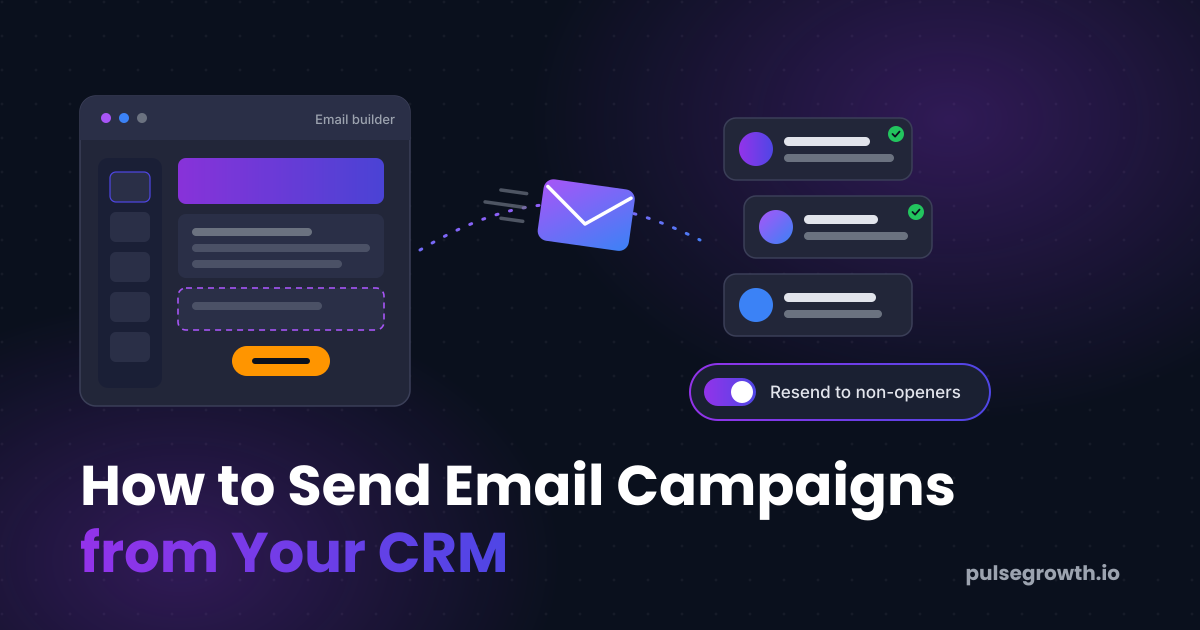
- Resend to Non-Openers is the easiest open rate win there is. Turn on the toggle, choose when the resend goes out, and the same campaign automatically goes back to everyone who didn't open it the first time. No extra work, a second chance at every missed inbox.
Review your recipients and settings one last time, click Send, and the campaign is on its way. Because your campaigns, texts, and contact list all live in the same PulseGrowth account, there's no exporting lists or syncing tools in any of this. The people you emailed are the same records your team sees everywhere else.
Key Takeaways
- Campaigns live under Marketing, then Emails, then the Campaigns tab.
- Always send yourself a test and read it on your phone before the real send.
- Pick recipients with smart lists or tags instead of emailing everyone every time.
- Run the deliverability check before every send; it's one click.
- Turn on Resend to Non-Openers. It's the cheapest open rate improvement you'll find.
FAQs
Do I need a separate email marketing tool if my CRM sends campaigns?
No. If your CRM includes a campaign builder, deliverability checks, and tracking, a separate tool mostly adds a second contact list to keep in sync. One list, one platform, fewer things to break.
What's the difference between a campaign and an automation?
A campaign is one email you send to a chosen audience at a chosen time, like a newsletter or an offer. An automation sends emails on its own when something triggers it, like a booking confirmation. Campaigns are for announcements; automations are for follow-up.
When should I use batch scheduling?
When your list is large or your sending domain is new. Batch Schedule spreads the send across smaller groups, which is gentler on your sender reputation than hitting everyone at once.
How does resend to non-openers work?
Turn on the toggle in Additional Settings and pick when the resend should go out. The system then sends the same campaign again, only to the contacts who didn't open the original.
Why does the sending domain matter so much?
Because it carries your sender reputation. A verified, warmed up domain is the difference between landing in the inbox and landing in spam, no matter how good the email itself is.
Want More Like This?
If you'd like your email campaigns, texts, and contact list running from one place, start a free 14 day trial of PulseGrowth. You get the full platform, including the campaign builder and deliverability tools. Start free, and we'll help you get it set up.
The PulseGrowth Team


